
Set up email in Android Gmail App
Connect your Bulwark email to your Android device using the standard Gmail application.
Note: Android mail apps may look different across different devices. Use these steps as a guide.
Initiate Setup
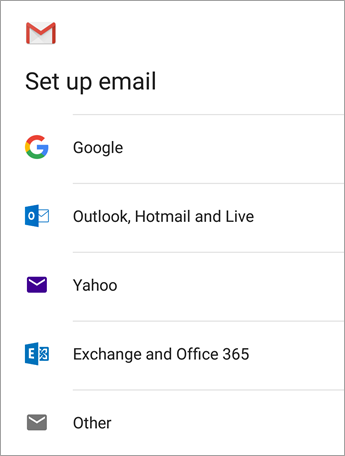
Open the Gmail app. Tap the menu icon (three lines) in the upper left corner, scroll to Settings, select Add account, and choose Exchange and Office 365.
Enter Credentials
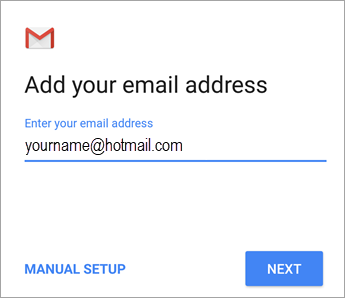
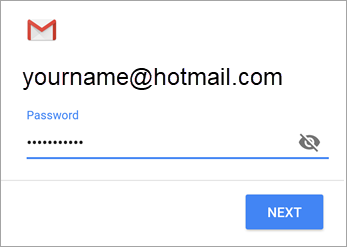
Enter your full email address and tap Next. On the following screen, enter your password and tap Next.
Permissions & Sync
Follow any prompts you may get for security or device permissions, sync settings, and data access.
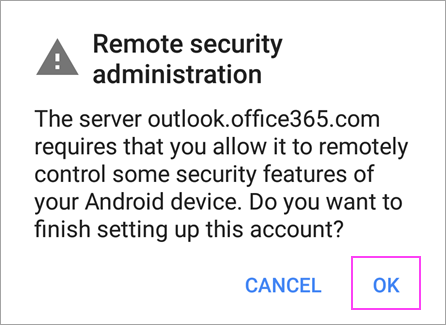
Action Required to Sync
Go to the inbox you just set up. If you see an email that says “Action Required to Sync Email,” open it and tap Use another Mail app instead.
If emails are already syncing, you can skip this step.
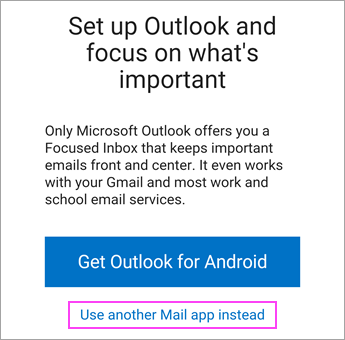
Check Notification Bar
Pull down the notification bar by swiping down from the top of your screen to confirm final security certificates.
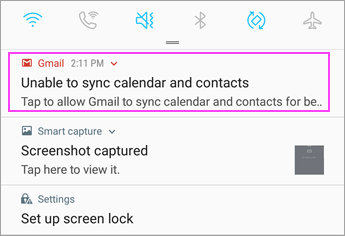
If you see “Unable to sync calendar and contacts,” tap it. Then tap Allow to give access.
Note: Verify your calendar and contacts are syncing manually if no error appears.
Success!
Your email is now connected to Gmail on Android.
Still having trouble?
If your email isn't connecting, our BC-based support team can walk you through the configuration over the phone.
604-210-4600