

Set up email in Outlook for Mac
Connect your Bulwark email account to Microsoft Outlook on your macOS device.
Open Account Settings
Open Outlook. In the top menu bar, select Outlook > Preferences > Account.
Once in the accounts window, click the plus (+) sign at the bottom left and select New Account.
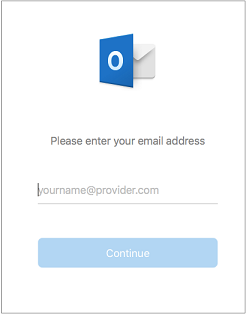
Enter Email Address
Type your full email address into the field and select Continue.
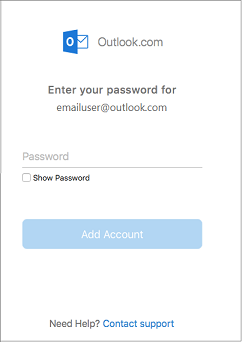
Enter Password
Type your password and select Add Account.
Note: Your screen might look slightly different from this one depending on the specific account type you're adding.
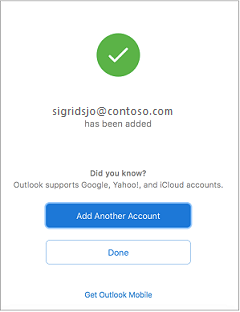
Finish Setup
Select Done to finalize the process and start using Outlook for Mac.
All Done!
Your Mac is now synced with your Bulwark email.
Still having trouble?
If Outlook for Mac isn't cooperating, our BC-based technicians can help troubleshoot the connection.
604-210-4600