

Setup Microsoft
Authenticator.
Simple steps to secure your account with Multi-Factor Authentication.
Video Guide
Prefer a visual walkthrough? Watch below.

Get Started.
Navigate to portal.office.com on your computer and sign in with your work account.
Interface Option A
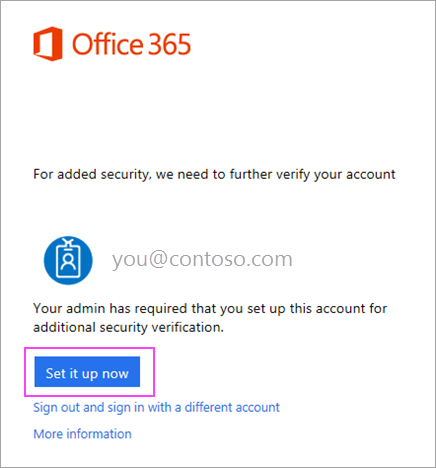
Click Set it up now, select Mobile app, and ensure notifications are enabled.
Interface Option B
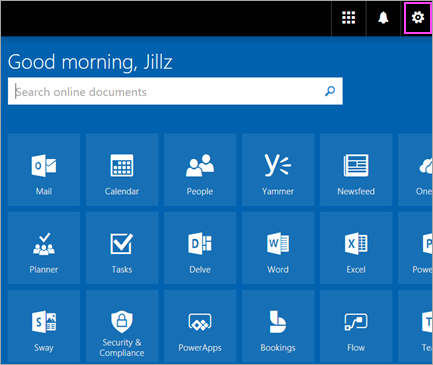
Click Set up Authenticator app from your security settings.
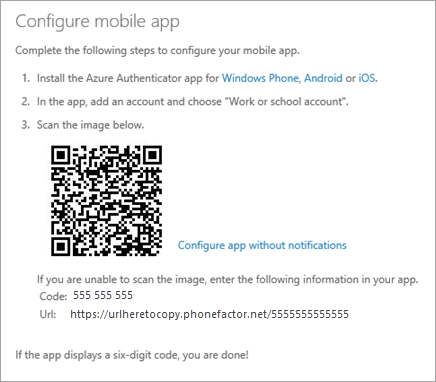
Scan QR Code.
Open the Authenticator app on your phone. Tap the + icon, choose Work or School account, and scan the QR square shown on your computer screen.
Verify Status.
Return to your computer and click Done. Wait for the activation status to finish checking.
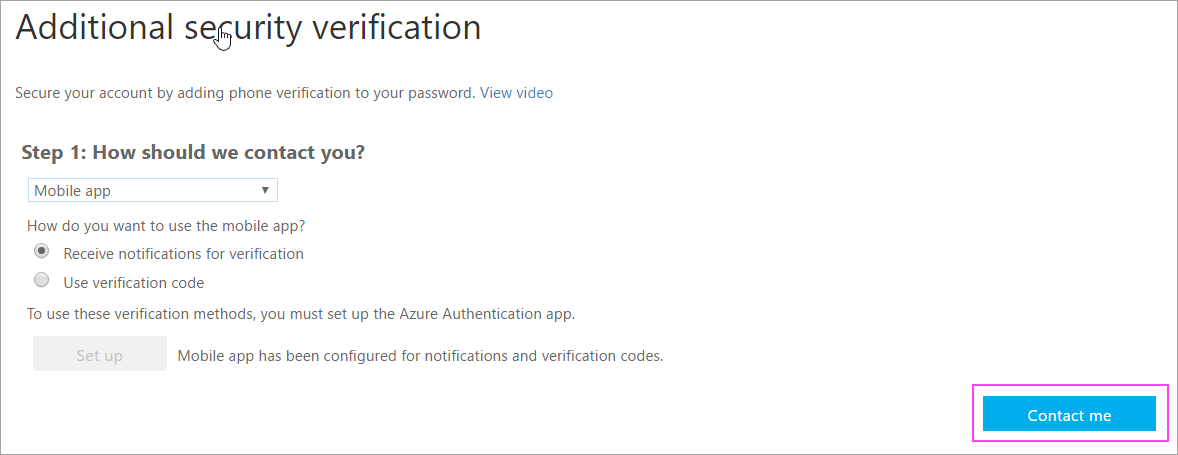
Final Approval.
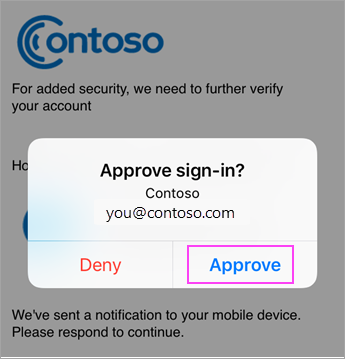
Tap Approve on the notification that appears on your phone screen.
You're Protected.
Configuration is complete. From now on, simply open the app and tap Approve whenever you sign in to your work account.