
NVMS7000 Walkthrough
PART 1 NVMS7000 Live View & Remote Playback Walkthrough
Download the NVMS7000


For the first time run, please select the Region first.
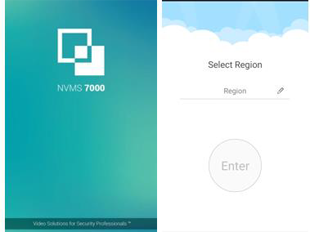
Main Screen should look like this:
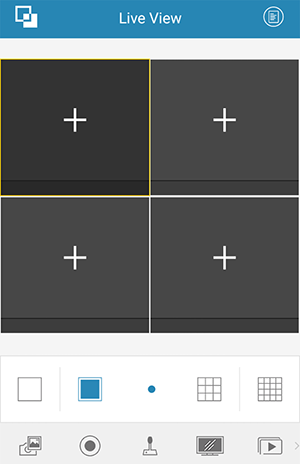
NOTE: LTS Logo = Main Menu
PART 2 Adding IP Address to Device List
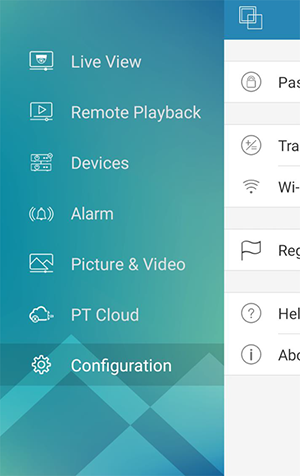
Click Logo (Side Menu Appears) → Devices
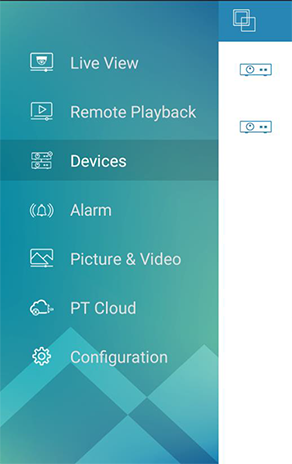
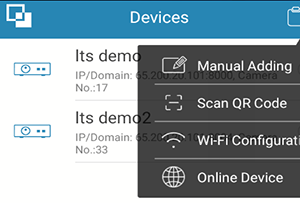
Select Manual Adding
Then, enter IP information:
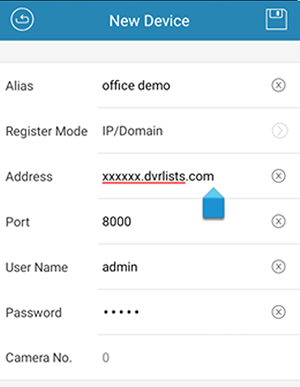
Click “Save icon”, then click “Start Live View” to see Live Video.
PART 3 Select Camera List / Favorites (NVMS7000)
Press Camera List (Top Right Icon)
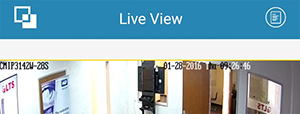
Select or de-select the camera from the list
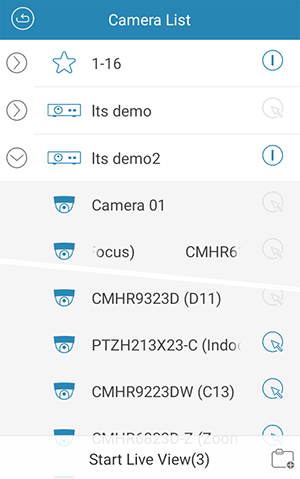
You can save the current selected camera to a Favorite Group
Click Start Live View to see the video
*Useful Tips
- Maximum amount of channels is 16CH. If you have more than 16, you can save as two different groups (1-16, and 17-32). Switch from one to the other.
- You can save multiple IP Cameras as one favorite group
- For slow internet speed connection, you can use Favorite to reduce camera connections.
PART 4 Remote Playback
Go to Camera List (top right icon)
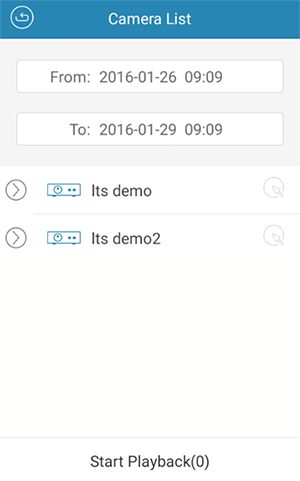
Use the timeline to drag between times
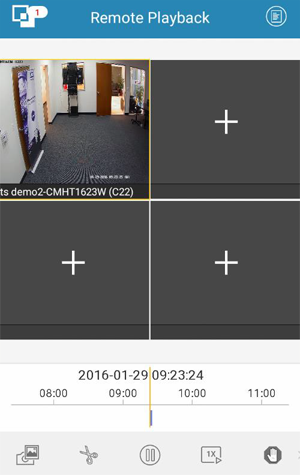
Note: Recap Video Button is designed for short moment backup. Dragging the timeline will cause recording to stop. If you try to back up for a long period of time, use PC to do the backup instead.
Live View → PTZ Control
Select toggle switch from bottom menu
Drag finger on screen to move camera in desired direction
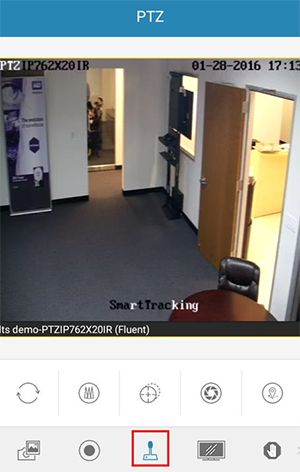
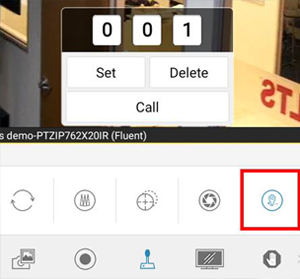
Select Preset function
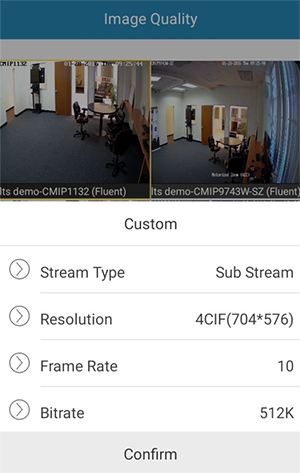
Adjust the quality according to the performance of your network and phone hardware
Change Image Quality
Click on Image Quality icon (fourth icon from bottom)
Select Custom
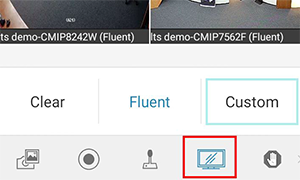
Adjust the quality according to the performance of your network and phone hardware
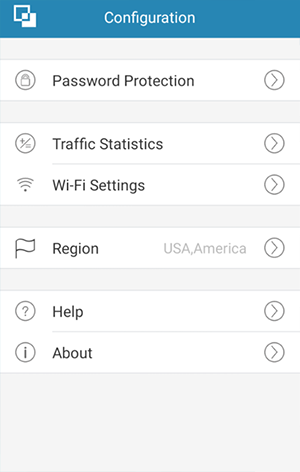
For more details, refer to help section. Configuration → Help
Alarm (Push Notifications)
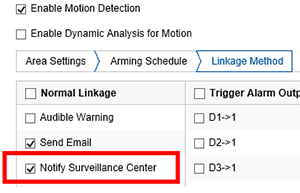
In order to use this feature, your IP camera/ DVR/ NVR must enable Motion Detection or VCA function, and Notify Surveillance Center must enable it.
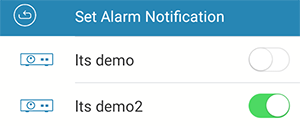
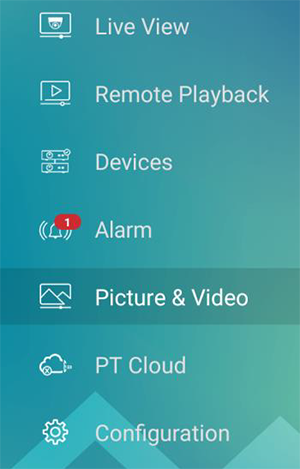
Click on LTS Logo, and select Alarm from side menu

Choose which Camera to enable Push Notification
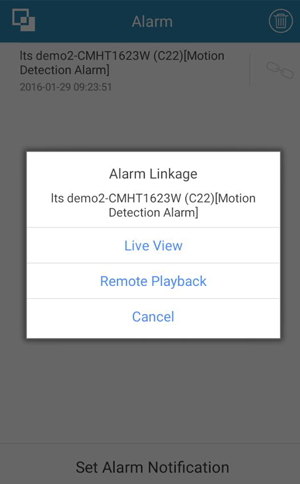
You’ll view an Alarm Linkage in red
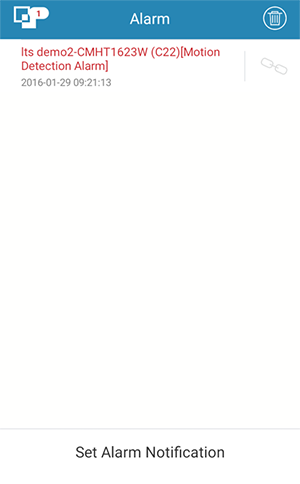
Press Alarm Linkage and Choose one of options given.
Picture and Video
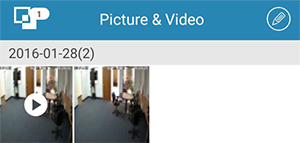
With Picture and video Management Interface, you can view and manage local video file and pictures that you manually record (clip) and capture in Live View and Remote Playback interface. Pictures and video files are stored in the NVMS7000 directory of micro SD card. You can also share pictures and videos to other available applications.
Share or Delete video using the Pencil icon in top right.
Help / Manual
You can find the User Manual from your Mobile App
Go to Menu → Configuration → Help