

Set up email in Android Samsung Email app
Connect your Bulwark email to your Android device using the built-in Samsung Email application.
Note: Android mail apps may look different across different devices. Use these steps as a guide or consult the manufacturer’s help for your particular device.
Initiate Setup
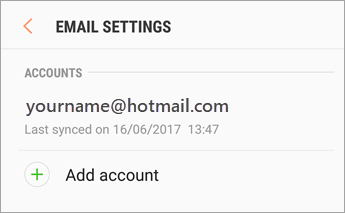
Open the Samsung Email app and tap Add Account if it’s your first time. Or, go to Settings in the app > Add account.
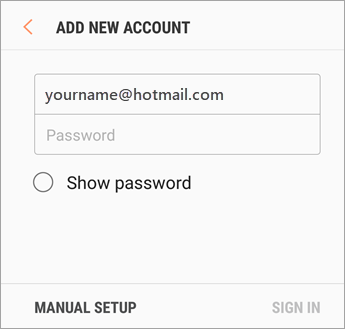
Enter Credentials
Enter your email address and password. Tap Sign in.
Note: If the email app detects your provider, you may be redirected to a different sign in screen.
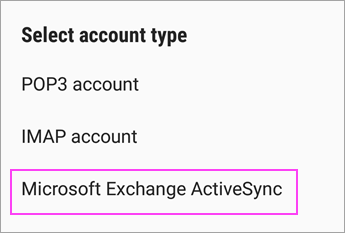
Select Account Type
If you’re prompted to select account type, choose Microsoft Exchange ActiveSync to sync contacts and calendars.
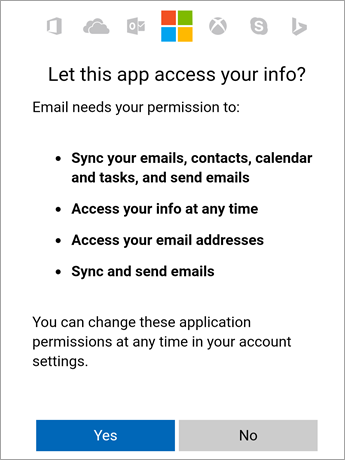
Confirm Permissions
Tap Yes or Ok to confirm settings and permissions. What you see may vary depending on what kind of account you’re setting up.
Security & Initial Sync
If you’ve turned on two-step verification, you’ll verify your identity with your chosen method.
Syncing email, calendar, contacts, and tasks may take a few minutes.
Action Required to Sync
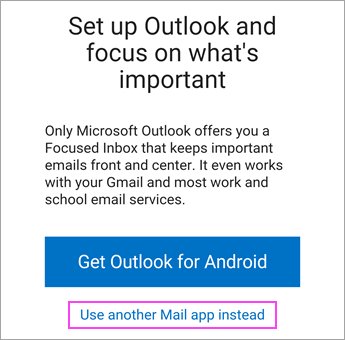
If you see an email that says “Action Required to Sync,” open it and tap Use another Mail app instead. If you don’t see this message, skip this step.

Success!
Your email is now connected to the Samsung Email app.
Still having trouble?
If your email isn't connecting, our BC-based support team can walk you through the configuration over the phone.
604-210-4600