

Set up email using the iOS Mail app
Follow this step-by-step guide to connect your Bulwark email to your iPhone or iPad.
Open Settings & Accounts
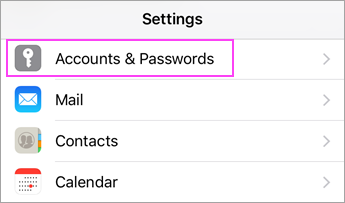
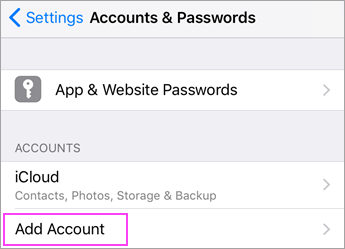
Go to your iPhone or iPad’s Settings, scroll down and tap Accounts & Passwords, then select Add Account.
Note: If you’re on iOS 10, go to Mail > Accounts > Add Account.
Select Account Type
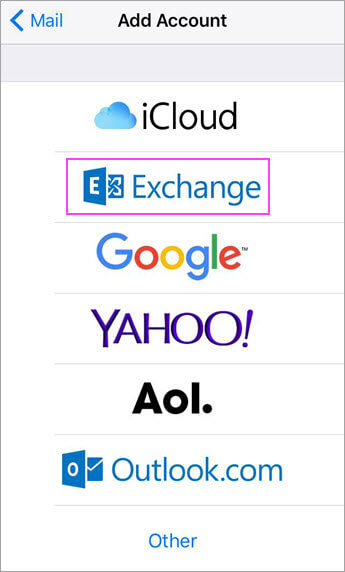
Select Exchange from the list of available providers.
Enter Credentials
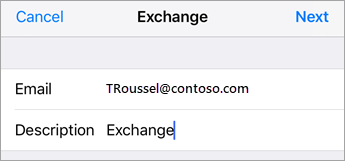
Enter your Office 365, Exchange, or Outlook.com email address and a description of your account (e.g., "Work Email"). Tap Next, then tap Sign In.
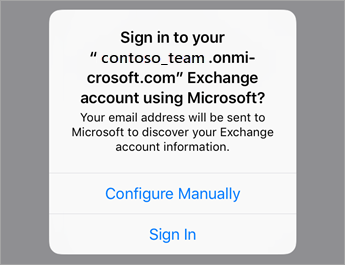
Authenticate
Enter the password associated with your email account. Tap Sign in or Next.
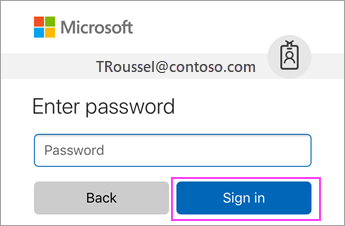
Sync Services & Save
The Mail app may request certain permissions; tap Accept. Finally, choose the services you want to sync (Mail, Contacts, Calendars, etc.) and tap Save.
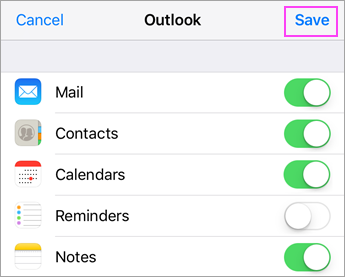
Setup Complete!
Your emails will now begin to sync to your device.
Still having trouble?
If your email isn't connecting, our BC-based support team can walk you through the configuration over the phone.
604-210-4600