

Set up email in Outlook for Desktop
Connect your Bulwark email account to Microsoft Outlook on your Windows or Mac computer.
Add New Account
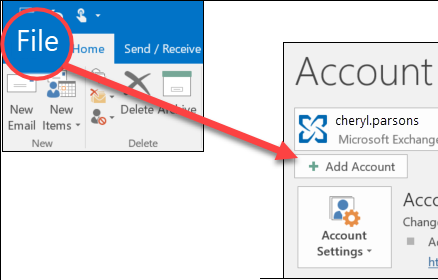
Open Outlook and select File > Add Account located in the top left menu.
Version Specific Setup
What you see next depends on your version of Outlook. Follow the section below that matches your screen.
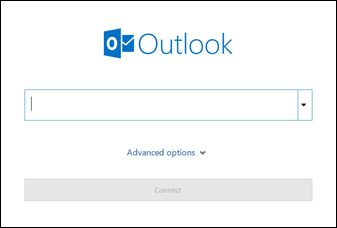
Enter your email address and click Connect.
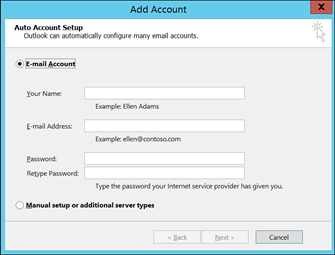
Enter your name, email address, and password, then click Next.
Finalize Connection
If prompted, enter your password again. Select OK and then Finish to start using your email account in Outlook.
All Set!
Outlook is now configured to send and receive Bulwark email.
Still having trouble?
Configuration can vary by network. If your Outlook won't connect, our local support team is here to assist you.
604-210-4600